Windows Update | Harden System Security

Windows updates are extremely important. They always should be installed as fast as possible to stay secure and if a reboot is required, it should be done immediately. Threat actors can weaponize publicly disclosed vulnerabilities the same day their POC (Proof-Of-Concept) is released..
In Windows by default, devices will scan daily, automatically download and install any applicable updates at a time optimized to reduce interference with usage, and then automatically try to restart when the end user is away.
The following policies the app configures make sure the default behavior explained above is tightly enforced.
 Enables Windows Update to download and install updates on any network, metered or not; because the updates are important and should not be suppressed, that's what bad actors would want.
  CSP
CSP
- Enables "Receive Updates for other Microsoft products" (such as PowerShell)
 Enables "Notify me when a restart is required to finish updating". CSP
- Specifies the number of days before quality updates are installed on devices automatically to 1 day. CSP
- Specifies the number of days before feature updates are installed on devices automatically to 1 day. CSP
- Sets the number of grace period days before feature updates are installed on devices automatically to 1 day. CSP
- Sets the number of grace period days before quality updates are installed on devices automatically to 1 day. CSP
- Configures the automatic updates to happen every day, automatically be downloaded and installed, notify users for restart. CSP
- Enables features introduced via servicing that are off by default so that users will be able to get new features after having Windows Update settings managed by Group Policy as the result of running this category. CSP
Management
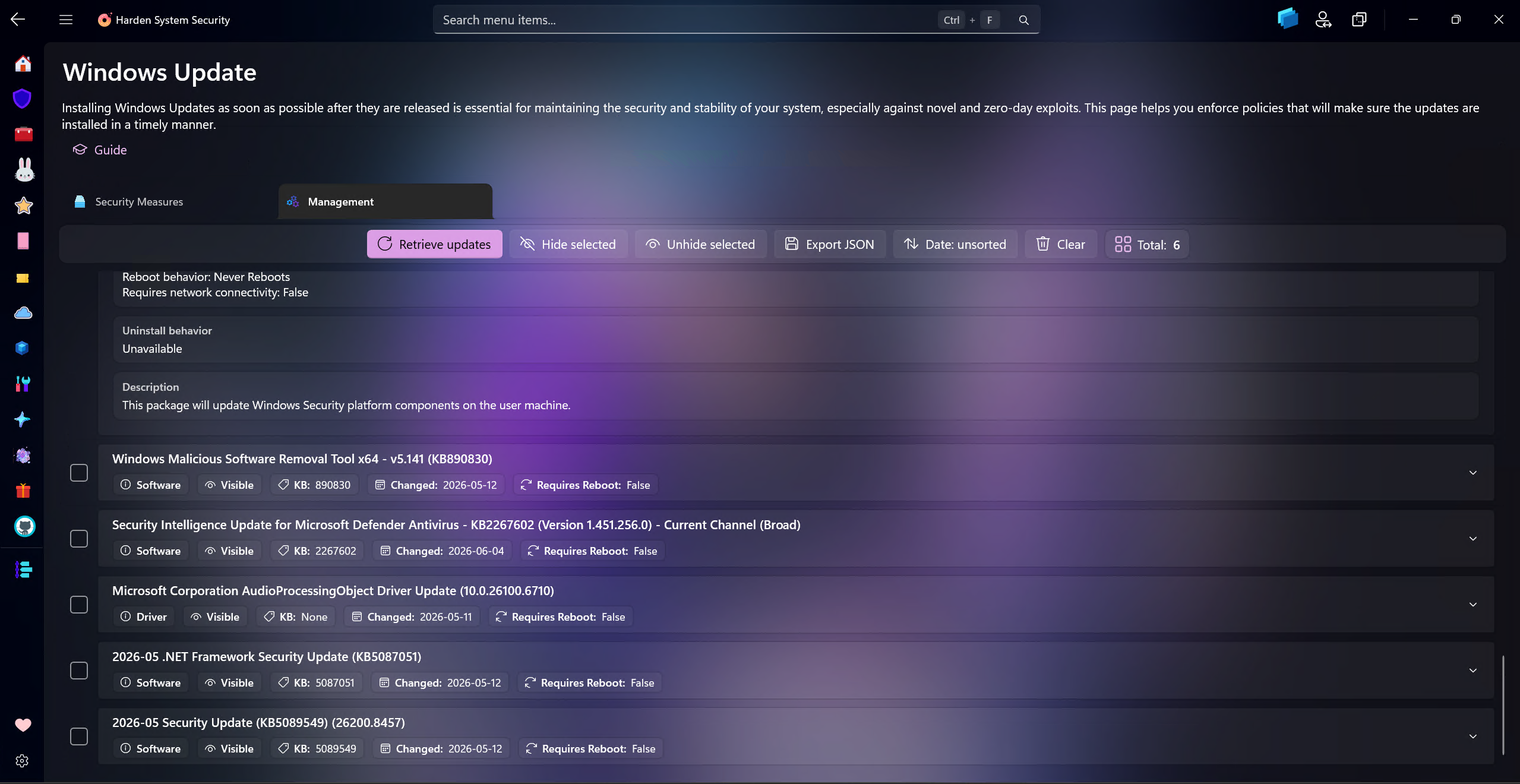
The management tab is designed to show available Windows updates that are not currently installed. Users can retrieve the available update list, inspect detailed metadata for each update, hide or unhide selected updates, sort updates by deployment date and export update metadata to JSON.
Tip
When you or Windows itself checks for updates, there is no way to select which ones you want to install and which ones you don't want, but now with this new feature, you have that option. This also means that if someone, some other software or even malware has hidden important security updates on your system, you can now view them in this management page and unhide them.
Being able to hide updates is useful in some scenarios, for example when a specific update is causing issues and you want to prevent it from being installed until a fix is released, or when Windows Update offers an old driver version even if newer version is installed. Each hidden update can be shown again easily via the UI controls.
Updates available in Windows carry a lot of metadata with them but Windows Update in Windows Settings only displays a tiny fraction of it. The management tab in the app allows users to inspect all the metadata for each update, which can be useful to understand what the update is about, its severity, whether it's a security update or not, the link to online articles and so much more. You can also instantly export them to JSON file, which can be useful for further analysis or record-keeping.