Service Manager | Harden System Security
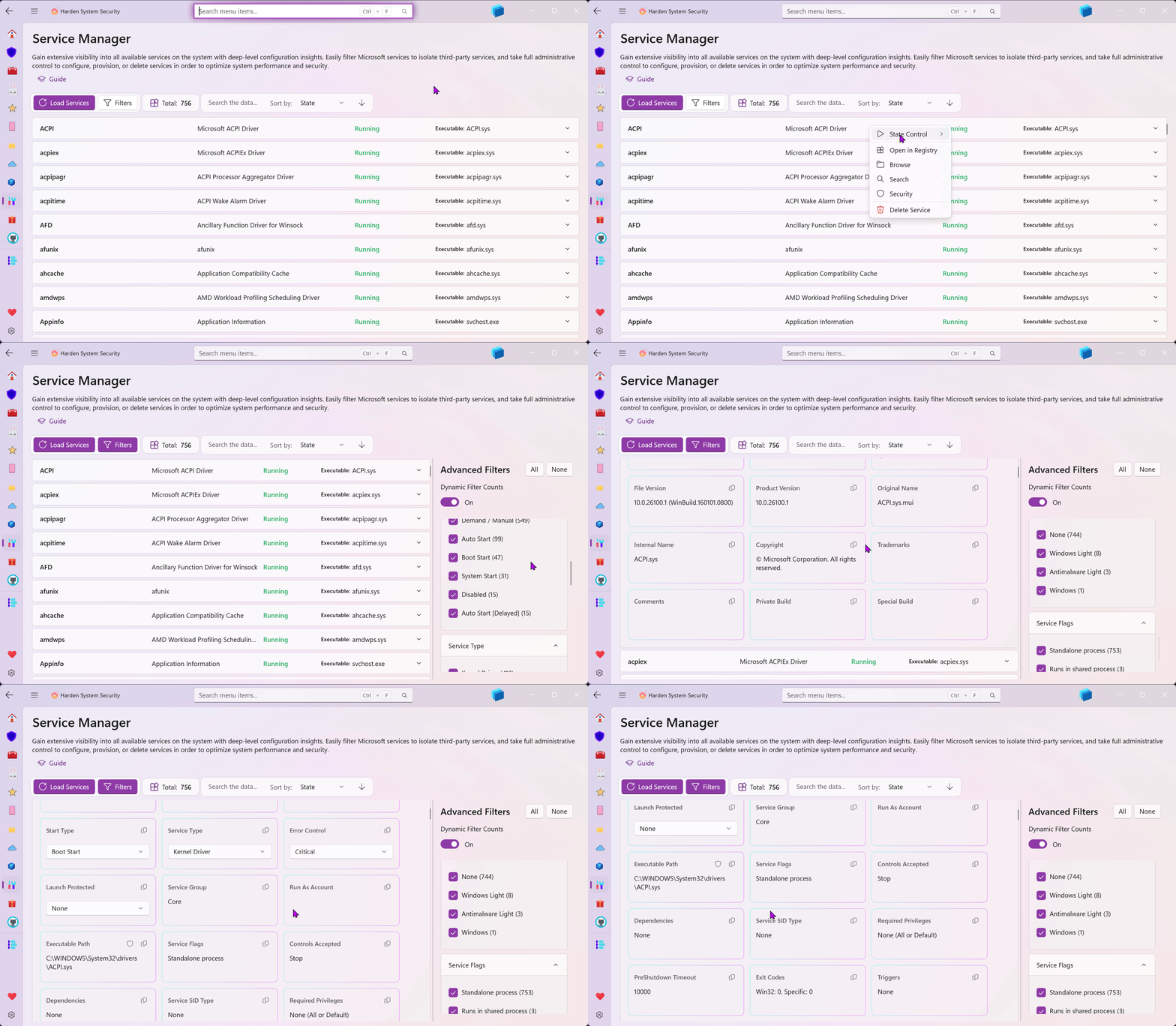
The Service Manager, a feature integrated into the Harden System Security app, is designed to give you comprehensive visibility and granular control over all Windows services. It goes far beyond the capabilities of the native Windows Services utility or 3rd-party tools, offering deep insights, robust filtering, precise metadata extraction, and direct manipulation of service configurations and underlying executable files.
Loading and Filtering Services
To start managing your services, simply press the Load Services button or press F5.
-
Advanced Filters Sidebar: Toggle the Filters panel to narrow down the displayed services based on precise criteria. You can filter by:
-
Company (e.g., Microsoft Corporation vs. Other)
- Status (Running, Stopped, Paused, Pending)
- Start Type (Boot, System, Auto, Manual, Disabled, Delayed)
- Service Type (Kernel Driver, User Service, Win32 Own Process, etc.)
- Error Control
- Launch Protected
-
Service Flags
-
Dynamic Filter Counts: By default, the app features dynamic filtering. As you check and uncheck filters, the numbers next to every other category automatically update in real-time to show you exactly how many services meet the combined active criteria. If you prefer the numbers to stay static representing the total count regardless of other filters, you can disable this toggle this button off.
Search and Sort
Finding a specific service in a list of hundreds is effortless.
- Instant Search: Use the search box to type a service name, display name, or description. The list updates instantly to match your query.
- Sorting Capabilities: Sort the entire list ascending or descending by Name, current State, or Start Type using the toolbar dropdown and direction toggle.
Reviewing Service Details
Services are presented in a clean, grouped list. Each item displays the service name, display name, color-coded running state, and executable name at a glance. Clicking on any service expands it to reveal comprehensive details split into two tabs:
1. Configuration Details
This section provides deep insights into how the service is configured to run, including its Raw Path, Process ID (PID), Service Group, Run As Account, Controls Accepted, Dependencies, Service SID Type, Required Privileges, PreShutdown Timeout, Exit Codes, Triggers, and Failure Actions.
2. Portable Executable Metadata
If the service is backed by a standard executable file, this tab displays metadata extracted directly from the file. This includes File Description, Company Name, Product Name, File and Product Versions, Original Name, Internal Name, Legal Copyright, Trademarks, and Special Build notes.
Tip
Every individual data point in the details panel is housed in a dedicated card with a built-in "Copy" button, allowing you to instantly extract specific paths, IDs, or descriptions to your clipboard.
Managing and Modifying Services
You have full control over the state and configuration of any service directly from the interface.
State Control
Right-click (or open the context menu) on any service to access the State Control menu. From here, you can instantly Start, Stop, Pause, Resume, or Restart the service. The app will wait and verify the state change before refreshing the UI.
Modifying Configurations
Inside the Configuration Details tab, you can use the dropdown menus to change core service behaviors. Once you change a value, a green "Save" button will appear to commit the change:
- Start Type: Switch the service between Boot Start, System Start, Auto Start, Demand / Manual, Disabled, or Auto Start (Delayed).
- Service Type: Modify the structural type of the service.
- Error Control: Change how the system reacts (Ignore, Normal, Severe, Critical) if the service fails to load during boot.
- Launch Protected: Configure antimalware light or Windows protected launch modes.
Important
Changing the Service Type to an incorrect value can lead to boot failures if it is a critical service. Additionally, setting a service to a Launch Protected mode cannot be reverted through the app due to strict Windows security boundaries; restoring it will require manually editing the Registry and rebooting. The app will prompt you for confirmation before making these sensitive changes.
Advanced Actions
The context menu provides several shortcuts to manage the service at the system level:
- Open in Registry: Instantly opens
regedit.exeand automatically navigates directly to the specific service's key in the Windows Registry. - Browse: Opens Windows File Explorer and highlights the underlying executable file.
- Search: Performs a quick web search of the service name and display name to help you identify unknown or suspicious services.
- Security: Opens the native Windows Advanced Security Settings dialog explicitly targeted at the Service object, allowing you to view and modify its access control list (ACL).
- Delete Service: Completely and permanently removes the service from the Service Control Manager. (A confirmation dialog is displayed to prevent accidental system breakage).